Overview
Testing ESP32 applications does not always require physical hardware. By leveraging QEMU (Quick Emulator) integrated with the ESP-IDF, developers can build, flash, and monitor applications within a virtualized environment. This is particularly useful for CI/CD pipelines or rapid prototyping when a dev kit is unavailable.
Environment Setup
Before running the emulator, ensure your ESP-IDF environment is correctly sourced. This provides the necessary idf.py path and Python dependencies.
- Navigate to your ESP directory.
- Source the export script to activate the environment.
cd ~/esp/esp-idf
./export.sh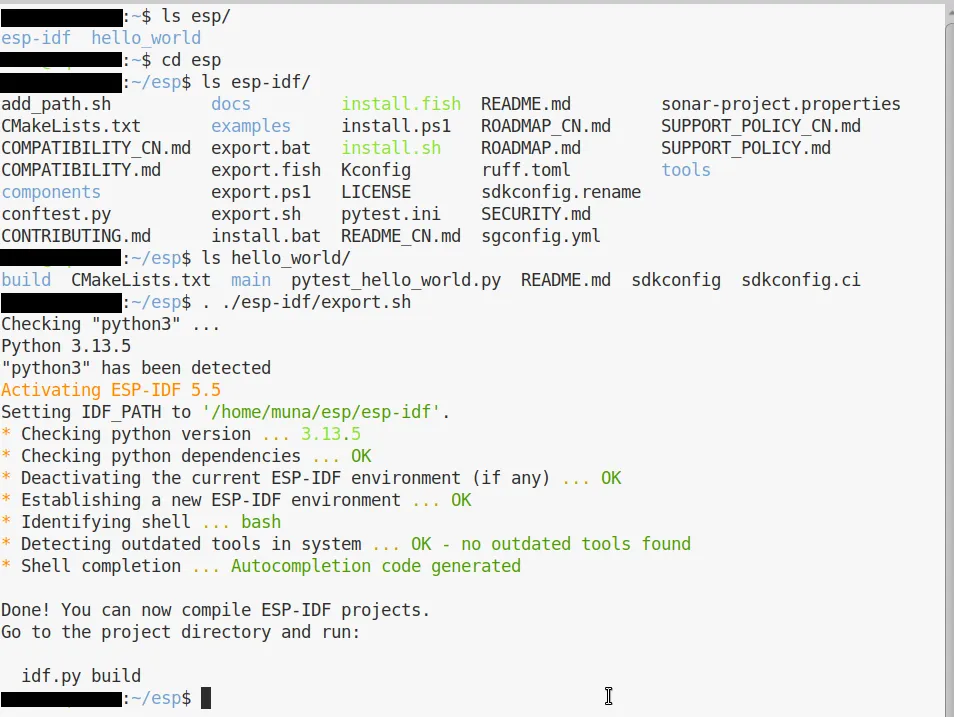
Upon successful activation, you should see a confirmation message indicating that the IDF_PATH is set and the Python virtual environment is active.
Building the Project
Navigate to your project directory (e.g., the hello_world example) and perform a standard build. QEMU requires a compiled binary to generate the flash image.
cd ~/esp/hello_world
idf.py build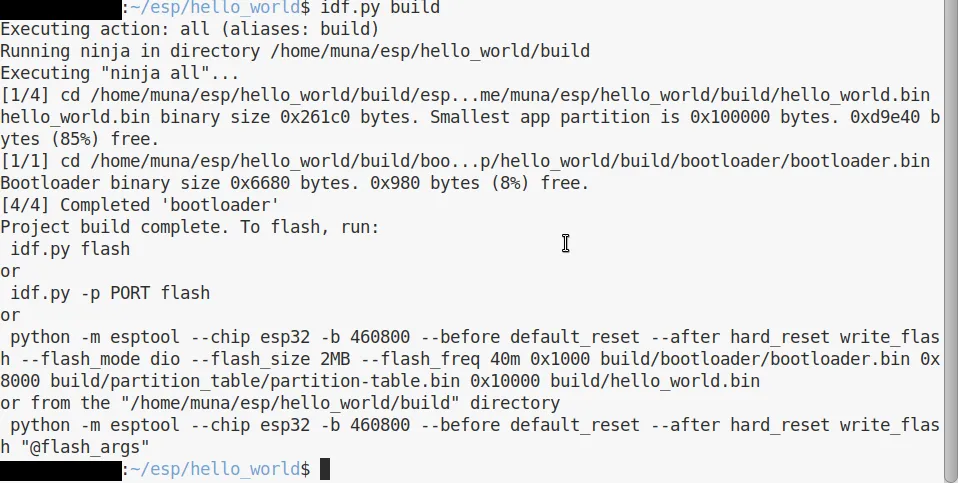
The build process generates the bootloader, partition table, and the application binary.
Running in QEMU
The ESP-IDF provides a wrapper command to simplify launching QEMU. Instead of manually configuring machine types and drive files, use the qemu target with idf.py.
To start the emulation and immediately open the monitor:
idf.py qemu monitor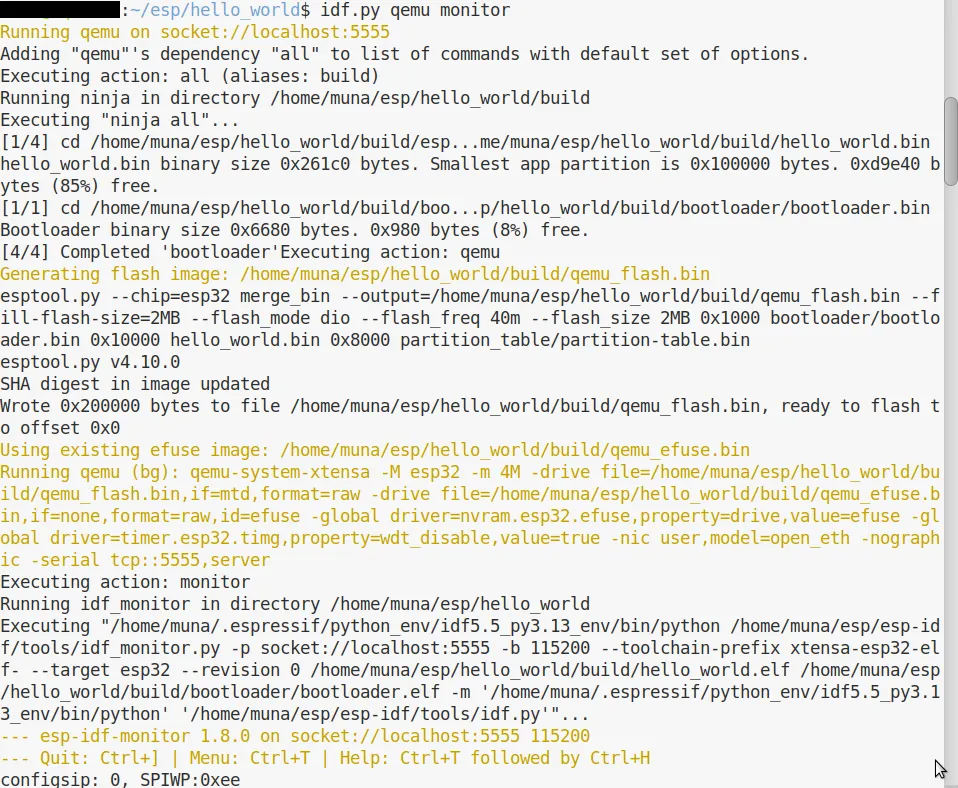
What happens under the hood:
- Binary Merging: The tool uses
esptool.pyto merge the bootloader, partition table, and app binary into a singleqemu_flash.binfile. - QEMU Invocation: It launches
qemu-system-xtensawith the-M esp32machine flag. - Network Socket: By default, the emulator runs on a local socket (typically
localhost:5555). - IDF Monitor: The command automatically attaches the
idf_monitorto the QEMU serial output.
Execution and Output
Once the emulator starts, you will see the standard ESP32 bootloader logs. This includes:
- CPU frequency (typically 160MHz).
- Application information and compile time.
- Heap initialization and RAM availability.
- The execution of
app_main().
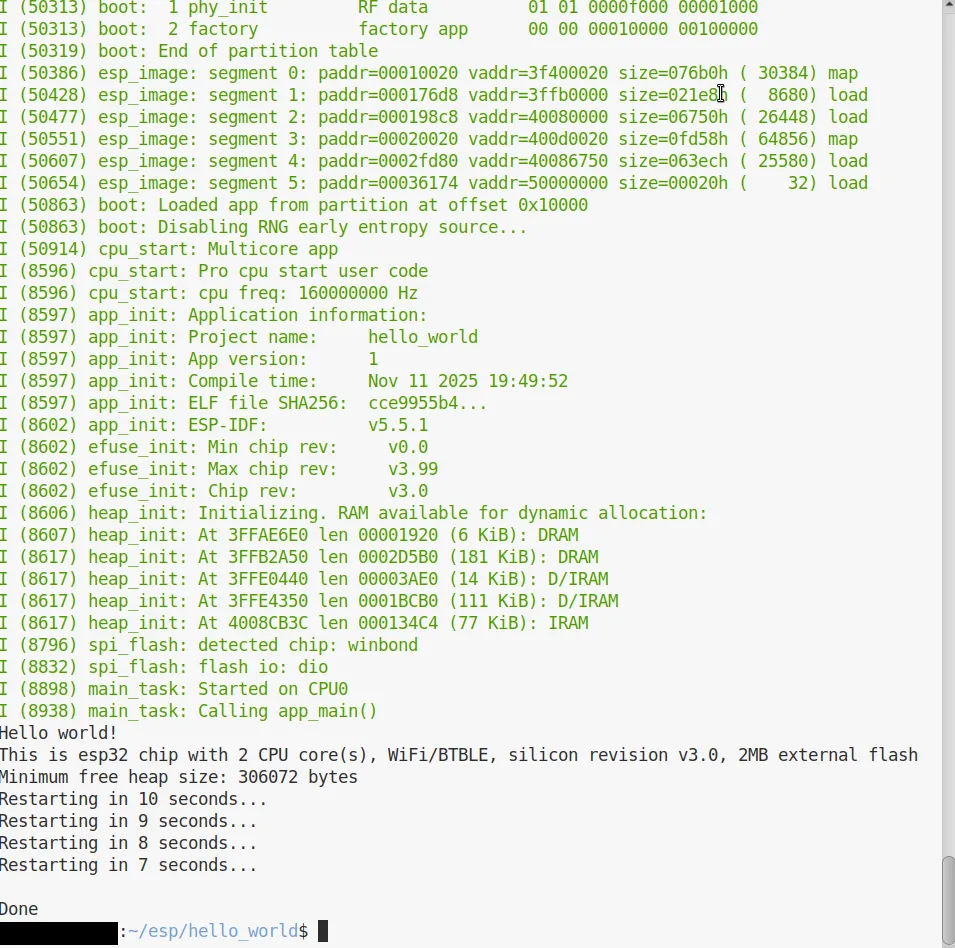
For the hello_world example, the terminal will print “Hello world!” followed by hardware details and a restart countdown.
Controlling the Session
Because the monitor is attached to a virtual serial port, standard terminal signals might not behave as expected.
- To Quit: Use the shortcut
Ctrl + ]. - Alternative Exit: If using standard QEMU escape sequences, use
Ctrl + AthenX.